
How to Prompt
The org.imixs.llm.workflow.OpenAIAPIAdapter is the core component that connects your BPMN process model with a language model. It is implemented as a SignalAdapter, meaning it is bound directly to a specific Event in your process model and executed automatically each time the workflow engine processes that event.
No programming is required. The adapter is activated and configured entirely through the Workflow Result section of the BPMN Event properties.
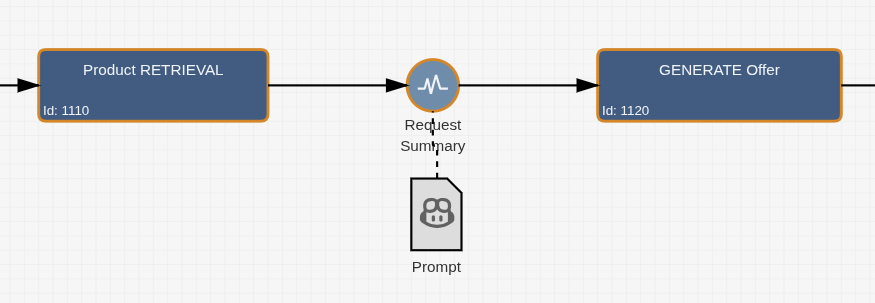
Configuring the Adapter
To activate the adapter on an event, add the following XML configuration to the Workflow Result of that event:
<imixs-ai name="PROMPT">
  <endpoint>my-llm</endpoint>
  <result-item>my.result.field</result-item>
  <result-event>JSON</result-event>
  <debug>true</debug>
</imixs-ai>
The name="PROMPT" attribute is mandatory and tells the adapter to operate in prompt mode. The available configuration properties are:
| Property | Type | Description |
|---|---|---|
endpoint |
Text | The name of the LLM endpoint defined in your LLM configuration |
result-item |
Text | The name of the process variable where the LLM response is stored |
result-event |
Text | Optional — triggers a CDI result event for custom post-processing |
prompt-template |
XML | Optional — an embedded prompt definition (see below) |
debug |
Boolean | Optional — prints detailed processing information to the log |
The Prompt Definition
The actual prompt is defined in a BPMN Data Object that is connected to the event via a BPMN Association — keeping the prompt cleanly separated from the adapter configuration.
The prompt definition follows this structure:
<PromptDefinition>
  <options>{"temperature": 0 }</options>
  <prompt role="system">You are a document processing expert.</prompt>
  <prompt role="user"><itemvalue>invoice.summary</itemvalue></prompt>
</PromptDefinition>
A prompt definition consists of one or more <prompt> messages, each with a role — following the standard OpenAI chat message format:
| Role | Description |
|---|---|
system |
Sets the behaviour and context of the model |
user |
The actual input or question sent to the model |
assistant |
Optional — used to provide few-shot examples |
The <options> element allows you to pass model-specific parameters such as temperature or n_predict directly to the LLM endpoint.
Dynamic Content with Item Values
Prompts are not static — they can reference live data from the current process instance. Before a prompt is sent to the LLM, Dynamixs.AI processes all dynamic placeholders and replaces them with actual values from the running process instance. This makes every LLM call context-aware and tailored to the current business data.
The most common placeholder is the <itemvalue> tag, which inserts the value of a named process variable directly into the prompt:
<prompt role="user">
  <![CDATA[
    Please summarize the following order:
    <itemvalue>order.description</itemvalue>
  ]]>
</prompt>
At runtime this becomes, for example:
Please summarize the following order:
10x Widget A, delivery to Berlin, required by end of month.
The <itemvalue> tag supports additional formatting options for dates, numbers and multi-value fields:
<!-- Format a date value -->
<itemvalue format="EEE, MMM d, yyyy">invoice.date</itemvalue>

<!-- Format a number with locale -->
<itemvalue format="#,###,##0.00" locale="de_DE">invoice.total</itemvalue>

<!-- Join a multi-value list with a separator -->
<itemvalue separator=", ">order.items</itemvalue>
This placeholder mechanism is based on the Imixs Adapt Text feature and is available throughout all prompt messages — in both the system and user roles.
Note: When using
<itemvalue>or other dynamic tags inside a Data Object, always wrap the prompt content in<![CDATA[ ... ]]>to avoid XML parsing issues.
Injecting File Content
For use cases where the prompt needs to include the content of a file attached to the process instance — such as a PDF invoice or a text document — the <FILECONTEXT> tag provides a convenient shortcut:
<prompt role="user">
  <![CDATA[
    Please summarize the following document:
    <FILECONTEXT>invoice.pdf</FILECONTEXT>
  ]]>
</prompt>
You can also use a regular expression to match multiple files at once — for example, to include all PDF attachments:
<FILECONTEXT>^.+\.(eml|msg|pdf)$</FILECONTEXT>
The <FILECONTEXT> tag can appear multiple times in a single prompt template, allowing you to combine content from several files in one LLM call.